Hardcoded values are the “cockroaches” of a data platform. You think you’ve killed them all, and then you promote a pipeline to Prod and one of them again sees the light: a lakehouse GUID you forgot to swap, a connection pointing at the wrong server, a table name that was perfectly fine in Dev and is very much not fine in production.
And the worst ones don’t even announce themselves. You won’t see an error or red banner. Your Test environment all of a sudden starts reading from Prod because one identifier never got changed, and you find out three days later, when someone finally asks why the “test” numbers look suspiciously real…
I hear you, I hear you: Nikola, that’s what deployment rules in Fabric Deployment Pipelines are for, isn’t it? Well, partly. But there’s a Fabric item built specifically to put an end to this whole genre of pain, and it’s the variable library. This article is the long version: what it is, how it’s wired together under the hood, who can actually consume it, when you should reach for it, when you absolutely shouldn’t, how it compares to the other parameterization features in Fabric, and a real telco demo to make it all concrete.
What is a variable library?
Think of it like the contacts list on your phone. You don’t memorize your friend’s number and retype it every time you call. You save it once under a name, and when their number changes, you update it in one place and never think about it again. This just works for every call and every message.
A variable library does the same thing for your workspace configuration. It’s a Fabric item, sitting right there next to your lakehouses and pipelines, that holds a set of named variables and their values. Other items in the same workspace then reference those names instead of carrying the raw values themselves. So when the value changes, you change it ONCE, in the library, and every consumer follows.
The official framing is that a variable library lets you do two things: customize configuration per release stage, and share configuration across items. Both of those words earn a paragraph.
Customizing per stage means the library can hold a different value for each environment. The source connection in Dev isn’t the source connection in Prod. The lookback window in a test run might be one day, in production, it might be 30. You set these up once, and Fabric serves the right value depending on where the consuming item runs.
Sharing across items means you define a value once and reuse it everywhere. Imagine you’ve got five lakehouses in a workspace, each with a shortcut pointing at the same external source. Without a library, changing that source is five edits and a prayer. With one, it’s a single edit, and all five shortcuts follow along. So, to put it in plain English: the idea is to stop scattering your truth across a dozen items, and let promotion between environments stop being an act of manual courage.
The anatomy: variables, value sets, and the active set
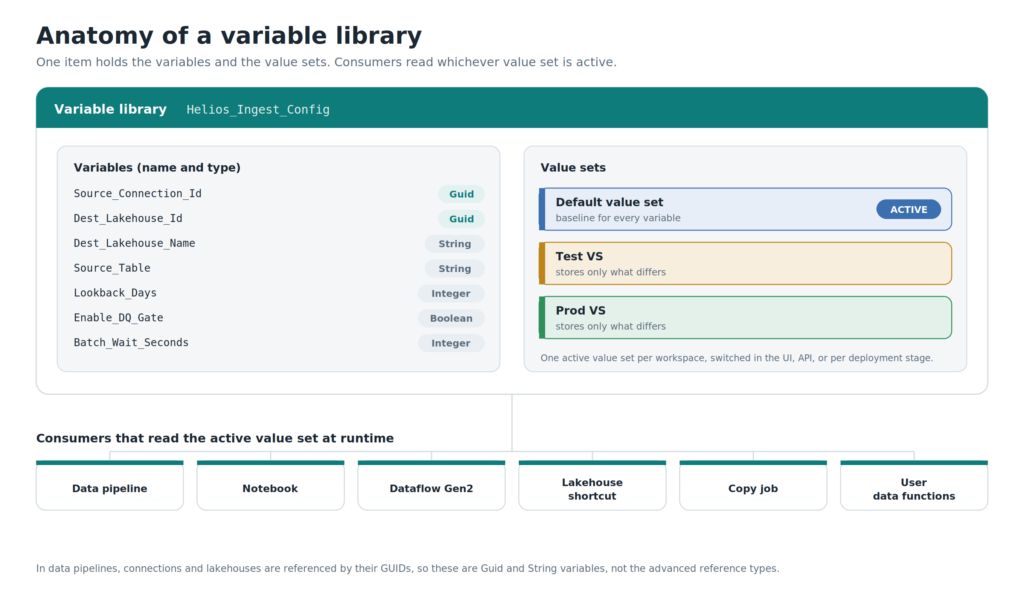
To understand the Variable Libraries feature in Fabric, you need to grasp three core parts. Once you get these straight, the rest is detail.
Variables and their types
A variable is the true atom here. Each one has a name, a type, a default value, and an optional note.
Fabric splits the types into two camps. The basic ones are exactly what they sound like:
| Type | What it holds |
|---|---|
| Boolean | true or false |
| Integer | whole numbers, no decimals |
| Number | numeric values, including decimals |
| String | text |
| DateTime | a moment in time, ISO 8601 UTC (yyyy-MM-ddTHH:mm:ss.xxxZ) |
| Guid | a globally unique identifier |
Then there are the advanced types, and these are the ones worth caring about, because they understand the Fabric world around them. An Item reference stores a pointer to an existing Fabric item (a lakehouse, a notebook, a pipeline) by holding its workspace ID and item ID. A Connection reference stores the ID of an external data connection, like Snowflake or Azure SQL, so your items can point at external resources without you pasting raw connection strings into a string variable.
That second one matters more than it looks. Pasting GUIDs and connection strings by hand is the exact behavior that gets you “Test is reading Prod”. The advanced types let the library carry that meaning properly.
One naming caveat to keep in mind: in notebooks, variable and library names are case sensitive, even though the library name is not case sensitive in the portal itself. Another reason to be consistent and to avoid spending an afternoon debugging nothing.
Value sets
Here’s where environment promotion actually happens.
A value set is a full set of values for every variable in the library. Every library has exactly one default value set with the baseline values. On top of that, you create alternative value sets – one for Dev, one for Test, one for Prod, or for A/B testing, or for swapping a data source within the same workspace.
The neat part is the override model. An alternative value set doesn’t repeat every variable. It stores only those whose values differ from the default. Anything it doesn’t mention, it inherits. This keeps your value sets lean, and it makes the differences jump off the page. You open the Prod set, you see three overridden variables, and you know instantly that those three are the only things that change in production. Everything else is shared.
The active value set
At any moment, in any single workspace, exactly one value set is active. That active set decides which values your consumers receive at runtime.
You may switch it through the UI or the API. One thing worth mentioning, though: in a deployment pipeline, each stage can have its own active value set. Dev stage runs with the Dev set, Test with Test, Prod with Prod, and the same pipeline artifact resolves the correct values in each stage without you having to touch it.
There are two rules that might surprise people. There’s always one, and only one, active value set. And you can’t delete a value set while it’s the active one. If you want to delete it, you first need to make another set active, then delete.
Under the hood: Git and CI/CD
A variable library is a regular Fabric item, and as such, it plays nicely with Git integration and deployment pipelines, and it can be driven through the Fabric public APIs.
When you commit a workspace to Git, the library shows up as its own folder. Inside, the structure mirrors the override model: a definition listing every variable with its default values, plus a separate JSON file per alternative value set holding only the overrides. A Prod value set on disk reads something like this:
{
  "$schema": "https://developer.microsoft.com/json-schemas/fabric/item/VariablesLibrary/definition/valueSets/1.0.0/schema.json",
  "valueSetName": "Prod VS",
  "overrides": [
    { "name": "Source_Connection", "value": "c0f13027-9bf4-4e8c-8f57-ec5c18c8656b" },
    { "name": "Lookback_Days", "value": "30" }
  ]
}
Two overrides, and you can read the intent in a matter of seconds. Your config changes become diffable and reviewable, exactly like the rest of your platform should be.
One subtle detail that may confuse people: which set is active is not stored in these files. The active selection lives as an item state at the workspace level. So deploying or importing the library doesn’t stomp on whichever set a target workspace already had active. Your Prod workspace stays pointed at Prod even when a fresh deployment rolls in. Which, essentially, is the behavior you want.
Who can actually consume from the library?
A library is only as useful as the items that can consume it.
As of today (June 2026), these items can consume variables from a variable library:
- Data pipelines, through library variables referenced as dynamic content
- Lakehouse shortcuts, parameterizing the target workspace, item, and path (string-type variables only, for now)
- Notebooks, two ways: the
notebookutilslibrary, and the%%configuremagic command - Dataflow Gen2
- Copy job
- User data functions
Look at the shape of that list. It leans hard toward data movement and data engineering: pipelines, dataflows, copy jobs, notebooks, shortcuts. That’s your first real signal about where variable libraries shine today, and where they don’t. But, more on that later…
And please, as a word of warning, mind the supported items list as it evolves! Microsoft has been widening it steadily since the feature first showed up, and something that’s missing today may well be supported by the time you read this. Check before you architect around an assumption.
When variable libraries are the right tool…
Ok, it’s time to get opinionated, because that’s why you’re here and not on the docs page:)
Reach for a variable library when you’re promoting the same artifact across Dev, Test, and Prod, and you’re tired of editing it by hand in each one. The same goes if a single configuration value is consumed by several items and you’d rather change it in one place than chase it across five, or if the value matters enough that you want it versioned in source control instead of buried in an item’s properties. Switching connections or data sources by stage is another classic fit, and connection reference variables were practically built for the multi-environment migrations many of us live in. It’s also the controlled, auditable way to let automation, or a teammate, flip configuration without opening the item and editing it live.
…and when they’re not
This is equally important part, because reaching for the wrong tool is how a platform rots from the inside.
A variable library is not a vault. Connection reference variables help you avoid embedding raw connection strings, but the variable values themselves aren’t secret material. Passwords, keys, tokens… They belong in Azure Key Vault, and proper connection management, and that’s the end of that conversation.
It’s also not the place for values computed during a run. A watermark, a current timestamp, a row count from the previous activity, that’s what a pipeline’s own variables and expressions handle. The library holds configuration, not runtime state. Going back to our contacts-list analogy: the library is the saved contact, not the live phone call.
And it does nothing for items that can’t consume it yet. If your target isn’t on the supported list, a library buys you nothing there. One more: with a hard ceiling of one active set per workspace, this is a stage-based configuration engine, not a per-user or multi-tenant fan-out machine.
Head-to-head: the variable library versus its neighbors
Fabric has several ways to avoid hardcoding things, and they overlap enough to confuse many of the practitioners. So, let’s try to put these capabilities heead-to head in the table below:
| Feature | Parameterizes | Scope | In source control? | Best at |
|---|---|---|---|---|
| Variable library | Shared config values consumed by many items | Workspace, active set per stage | Yes, as its own item | Centralized, stage-aware config across items |
| Deployment pipeline rules | Values rewritten at deployment time | Per deployment pipeline stage | Partly, as pipeline settings | Last-mile overrides during promotion |
| Pipeline parameters and variables | Inputs and runtime state for one pipeline | A single pipeline run | Yes, in the pipeline definition | Per-run inputs and values born during a run |
| Power BI / semantic model parameters | Connection and query inputs for a model | One model or report | Yes, in the model | Parameterizing a single model’s data source |
| Spark environments and notebook configs | Libraries, Spark settings, default lakehouse | An environment or session | Yes, as environment items | Compute configuration, not business config |
Deployment pipeline rules and variable libraries are partners far more than rivals, although the distinction might confuse almost everyone at first glance. A deployment rule rewrites a specific value at the moment you click deploy, so it’s a last-mile override during promotion. The library is a living item that any supported consumer reads at runtime based on the active value set. A clean pattern is to let the library carry the bulk of your stage-aware configuration and keep deployment rules for the narrow cases it can’t yet cover. If you find yourself maintaining a small forest of deployment rules, that’s usually a sign that a library wants to absorb most of them.
A pipeline’s own parameters and Set variable activities are a different beast, even though both have “variable” in the name. They’re about a single run: inputs passed in, state computed, and changed as the pipeline executes. The library lives above any single run and is shared across items and stages. The rule of thumb: if the value is decided before the run and is the same for every run in that stage, it’s library material. On the flip side, if it’s born during the run, it’s pipeline-variable material.
Semantic model parameters sit one layer down, scoped tightly to a single model or report, driving its data source and query behavior. They’re the right tool inside the BI layer, and as of today, a variable library doesn’t parameterize semantic models the way it does pipelines and notebooks. So these two rarely compete. You’ll often use both, one per layer.
Spark environments are about compute, not business config: which libraries are installed, Spark settings, the default lakehouse for a session, etc. The library is about which source, which table, which window, which toggle. They meet in exactly one place – %%configure can pull a library variable to set a notebook’s default lakehouse, but their jobs stay distinct. Don’t stuff compute settings into a library, and don’t try to express environment-specific business config purely through Spark environments.
A fresh arrival: schedule parameters
This feature is worth a short detour, because it shows where this whole thing is heading. Fabric Data Factory now lets you pass parameter values straight into pipelines through scheduled triggers. Instead of hardcoding values in pipeline logic, or leaning on a Set variable plus utcNow() workaround, you define the parameters once in the pipeline and supply the values at each scheduled execution. Different config for the morning run than the end-of-day batch? Set up two schedules and pass different values to each.
You can supply those values in two ways: a direct value typed into the schedule, or a variable library reference that pulls a centralized value, which is the cleaner option for environment promotion.
However, there’s one caveat here to be aware of. The parameter names in your schedule must match the parameter names in your pipeline exactly. If you get them wrong, Fabric ignores the values at runtime with no error at all… so write the names down and check them twice. It works well alongside variable libraries, and it closes a gap that scheduled runs have had for a while.
A real-life demo: One pipeline, three countries, three stages
Ok, enough theory, let’s now examine the kind of scenario that pulls everything we covered so far together, based on the world of multi-country telco platforms – a world I spend a fair bit of my time in.
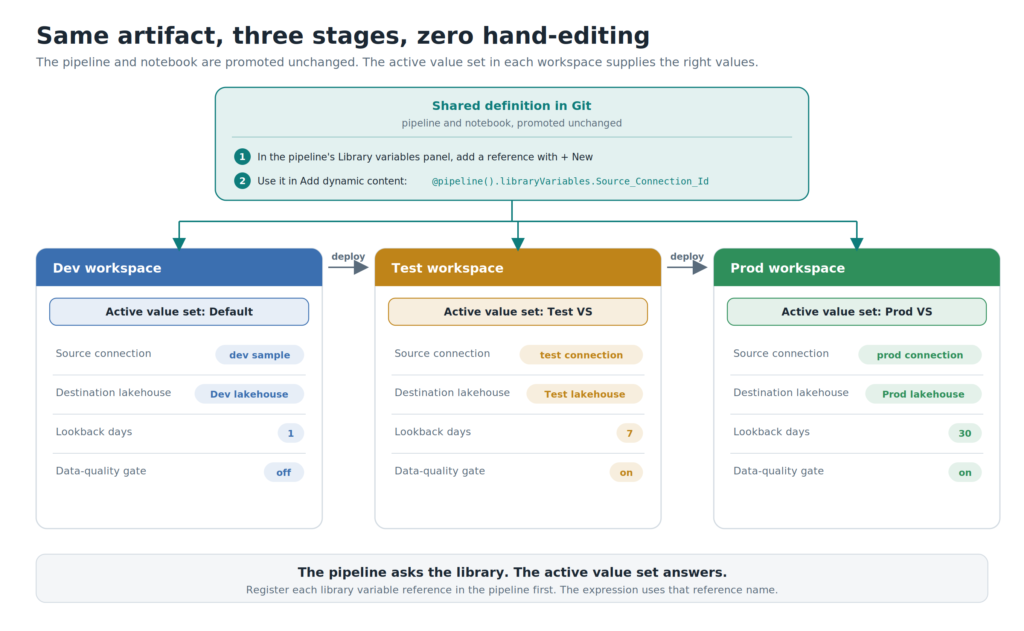
Let’s imagine a telecom group, call it Helios Telecom, running in three markets. Every night, a single ingestion pipeline pulls subscriber usage data from an operational source and lands it in a lakehouse for downstream analytics. That same pipeline has to run in Dev, Test, and Prod, and in each stage, several things must change. The source connection differs from one environment to the next, along with the destination lakehouse, the source table name, the lookback window in days, and a data-quality gate that’s off while developing and on in production. Five different things, three environments. That’s fifteen chances to mess up a value by hand. Let’s use Variable libraries to take it to zero.
First, in the Fabric workspace, create a new item and pick Variable library. Name it Helios_Ingest_Config.
Next, define six variables, choosing types on purpose instead of dumping everything into strings. The connection and the lakehouse are referenced by their GUIDs, so they’re Guid variables, not the advanced reference types. You can pull the connection ID from the Manage connections and gateways. Open the connection settings and grab the object ID:
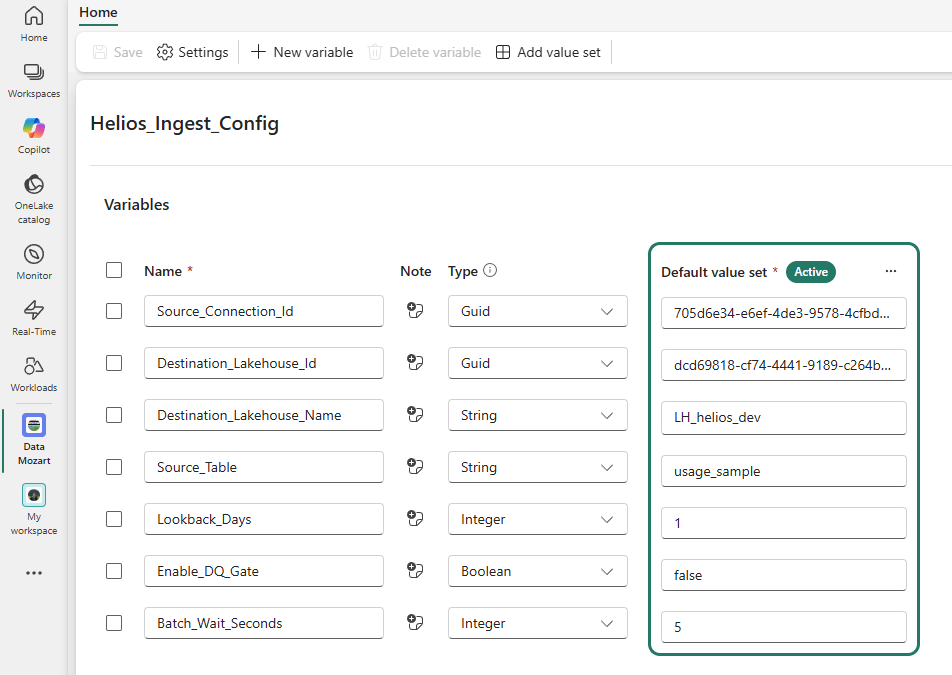
| Variable | Type | Why |
|---|---|---|
Source_Connection_Id | Guid | the source connection’s object ID |
Destination_Lakehouse_Id | Guid | the destination lakehouse’s object ID |
Destination_Lakehouse_Name | String | the lakehouse display name, for the notebook default lakehouse |
Source_Table | String | the dataset to read |
Lookback_Days | Integer | the ingestion window |
Enable_DQ_Gate | Boolean | run the data-quality check, or not |
Batch_Wait_Seconds | Integer | a polite pause between batches |
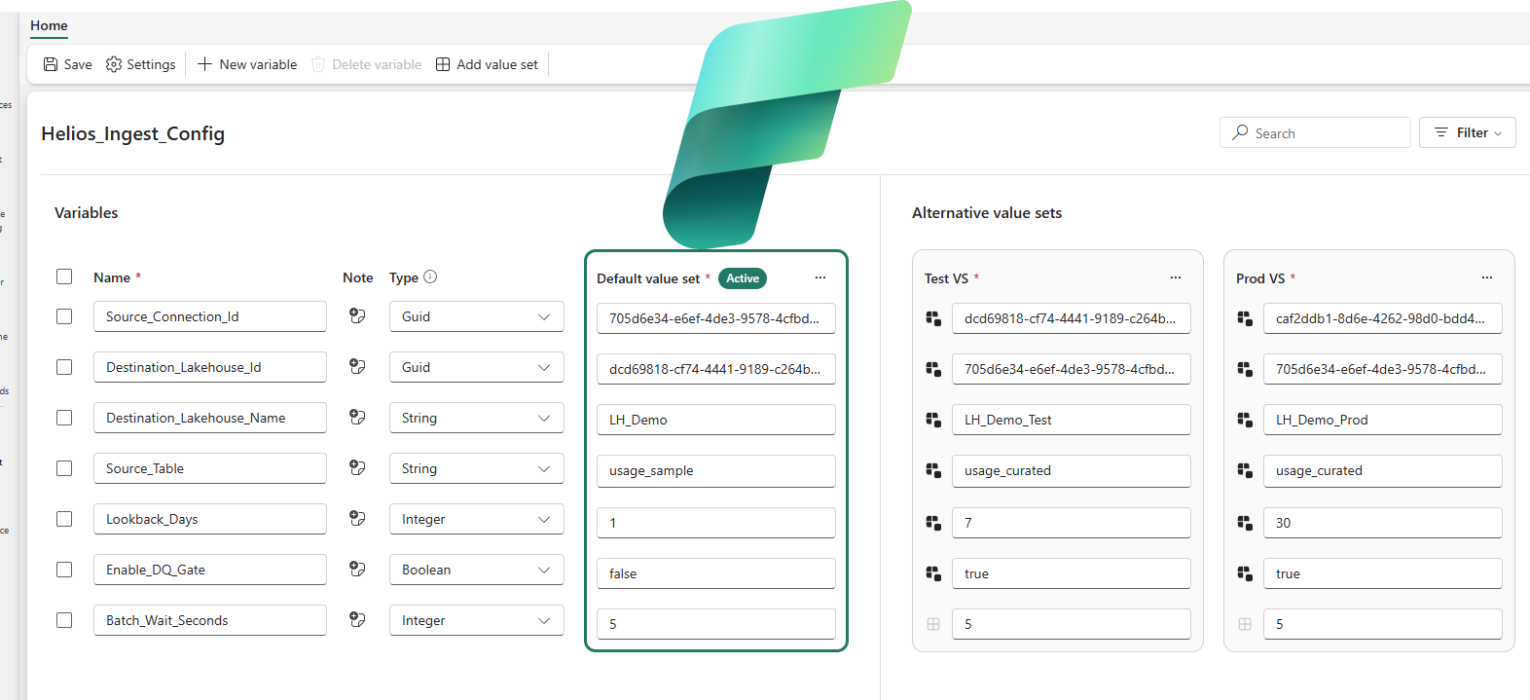
Then build the value sets. The default set is your Dev config. Add two alternatives, Test VS and Prod VS, overriding only what actually changes:
| Variable | Default (Dev) | Test VS | Prod VS |
|---|---|---|---|
Source_Connection_Id | dev conn GUID | test conn GUID | prod conn GUID |
Destination_Lakehouse_Id | Dev LH GUID | Test LH GUID | Prod LH GUID |
Destination_Lakehouse_Name | lh_helios_dev | lh_helios_test | lh_helios_prod |
Source_Table | usage_sample | usage_curated | usage_curated |
Lookback_Days | 1 | 7 | 30 |
Enable_DQ_Gate | false | true | true |
Batch_Wait_Seconds | 5 | 5 | 5 |
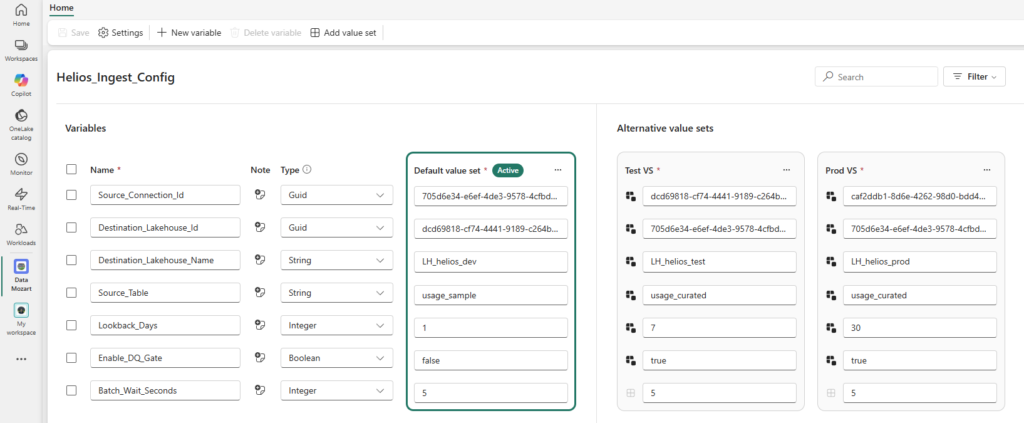
Notice how Batch_Wait_Seconds is identical everywhere? In Test and Prod, it simply inherits the default and never appears in those override files at all. And Source_Table is shared between Test and Prod but different in Dev. Each value set tells you only what’s special about it. Nothing more.
Now consume the variables in the pipeline. Drop a Copy data activity on the canvas. On the pipeline canvas, look at the bottom properties panel where the Parameters and Variables tabs live, and select the Library variables tab. Click + New. In the pop-up, choose your variable library, then pick the Source_Connection_Id variable.
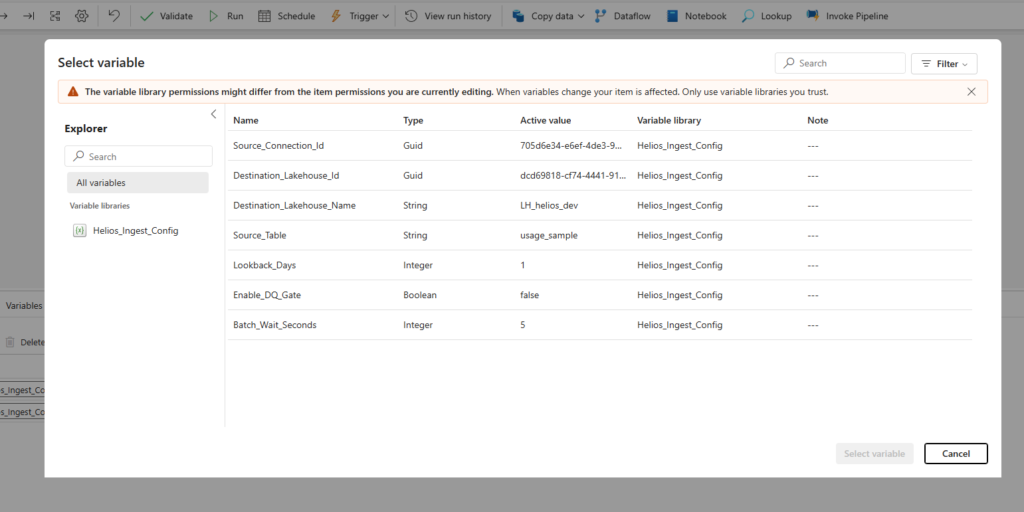
You’ll assign it a reference name here, and that reference name is what the expression uses. Now go back to the Copy data activity, Source > Connection > Add dynamic content. Don’t type the expression. Instead, select the three dots next to Functions and choose Library variables, then select your reference.
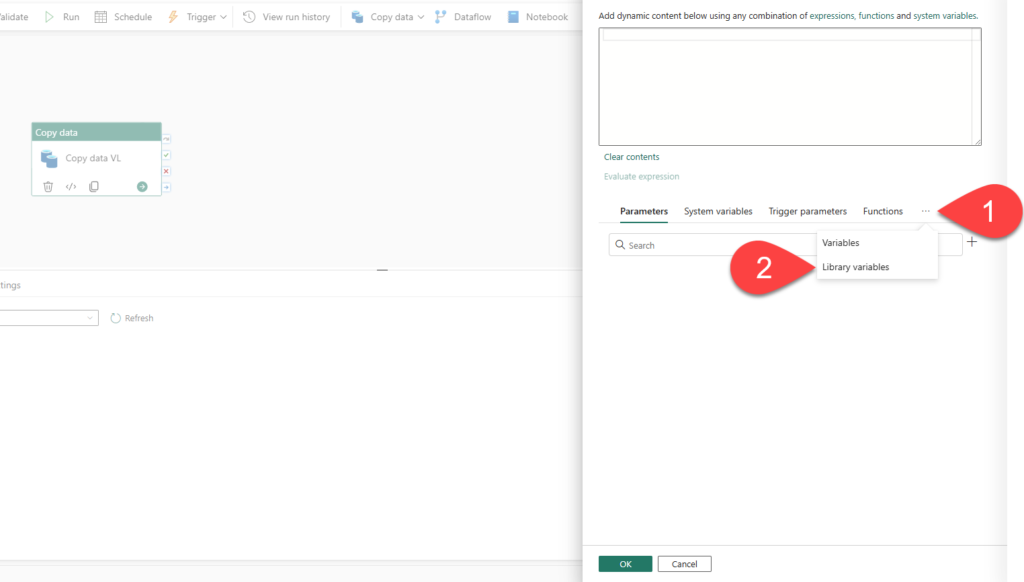
Fabric inserts @pipeline().libraryVariables.Source_Connection for you.
Then, for the source table, choose Enter manually, click on the Table name, and then select Add dynamic content:
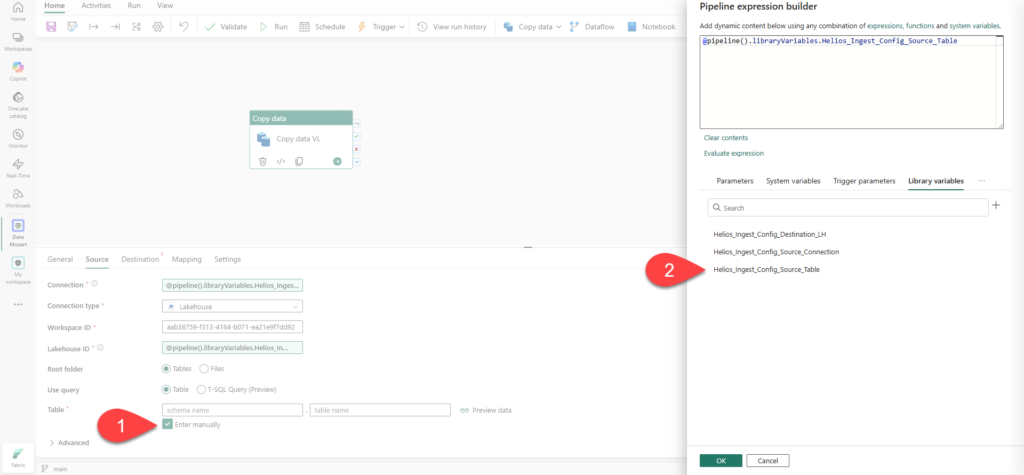
Do the same for the destination.
The pipeline now holds zero hardcoded environment values. It asks the library, and the library answers based on whichever set is active.
A downstream notebook can read the very same library, with no code changes between environments:
vl = notebookutils.variableLibrary.getLibrary("Helios_Ingest_Config")

run_dq   = vl.Enable_DQ_Gate
lookback = vl.Lookback_Days
table    = vl.Source_Table

if run_dq:
    print(f"Running DQ gate on {table} over {lookback} days")
else:
    print("DQ gate disabled for this environment")
Let me share three things from experience here. The notebookutils.variableLibrary API reaches libraries in the same workspace only, it always reads the active value set, and the library is read-only from the notebook – you change values in the UI or API, never from code. (Service principals aren’t supported for these notebook utilities yet, so keep that out of the scope of an SPN-driven run.)
If instead you want a notebook to bind its default lakehouse per environment, that’s the %%configure route, pulling the variable by reference path:
%%configure
{
  "defaultLakehouse": {
    "name": { "variableName": "$(/**/Helios_Ingest_Config/Destination_Lakehouse_Name)" },
    "id":   { "variableName": "$(/**/Helios_Ingest_Config/Destination_Lakehouse_Id)" }
  }
}
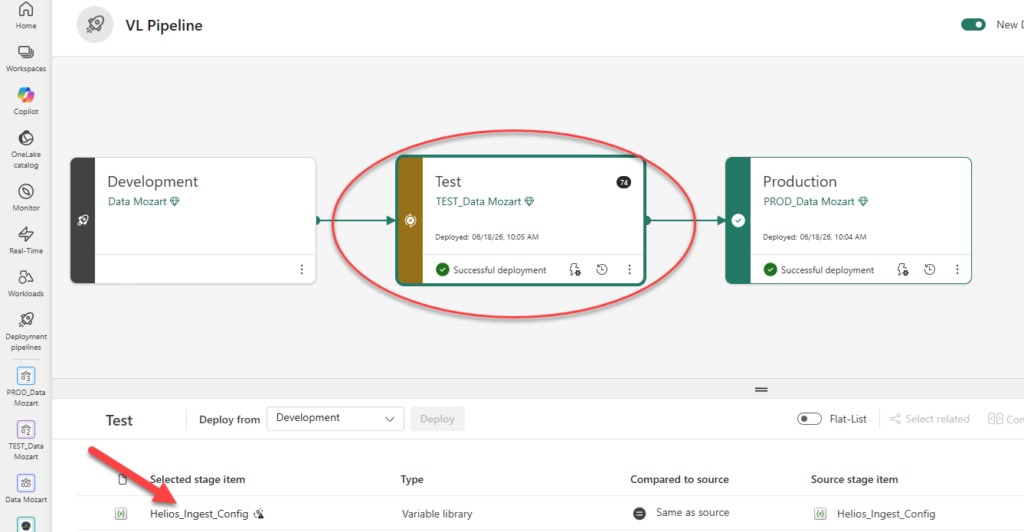
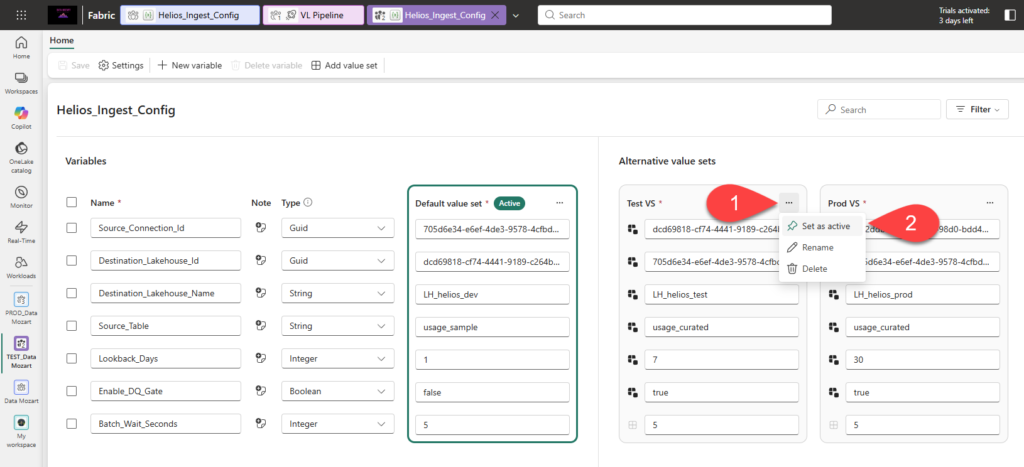
Last, wire it into a deployment pipeline with Dev, Test, and Prod stages, assign the workspaces, and for each stage, set the matching value set as active: Dev uses the default, Test uses Test VS, Prod uses Prod VS. This is a one-time setup.
First, while in the Test stage, open the Variable library item:
Then, click on three dots and set the Test VS value as active:
And, that’s it. From here on, promotion is straightforward. You deploy the same pipeline and notebook up the stages, and each environment resolves the correct source, lakehouse, window, and DQ toggle by itself. And straightforward, in release management, is the highest compliment there is:)
Limits, gotchas, and the permissions elephant!
Before you rebuild your whole platform on this, a few words about smaller warnings and one bigger warning that earns its own heading.
The size limits: up to 1,000 variables and up to 1,000 value sets per library, as long as the total cells across alternative sets stay under 10,000 and the item stays under 1 MB. Notes and value-set descriptions cap at 2,048 characters each. Value sets also appear in creation order, and you can’t reorder them in the UI. To change the order, you need to edit the JSON in Git directly.
And, now the elephant. Because a variable library is its own Fabric item, it carries its own permission set, and that set can differ from the permissions on the items that consume it.
Wait, what?! A user could have write access to the library while having no access at all to the pipelines and notebooks that depend on it. Let that one sink. Someone who can edit a value can change the behavior of items they can’t even see. Flip a connection reference, and a consuming pipeline suddenly starts reading from somewhere else. That’s a real attack vector, whether the change is malicious or just a Friday-afternoon mistake.
So treat write access to variable libraries as the privileged thing it is. Lock it down to trusted users and service identities, audit those assignments on a schedule, and let your items reference only libraries you’ve explicitly decided to trust. Centralizing your configuration is powerful precisely because everything leans on it, which is the same reason a careless permission grant here does so much damage.
A few habits worth keeping
- Pick types deliberately – connection reference and item reference exist to save you from pasting GUIDs by hand.
- Keep libraries focused and name them like a human will read them at midnight (
Helios_Ingest_Config, notvars2_final_REAL). - Use the note field – context is free.
- Override only what differs, so each set reads as a clear statement of what makes that stage special.
- Put the library in Git from day one – it’s a de-facto standard for a reason.
- Guard those write permissions as they matter, because they do.
Wrapping up
The variable library looks modest and turns out to be foundational. It takes the most error-prone, least glamorous job on a data platform – moving the same thing across environments without breaking it – and trades a recurring evening of GUID-hunting for a one-time setup. For centralized, stage-aware, source-controlled configuration across your engineering layer, it’s the tool Fabric built for exactly this job. So, go centralize your truth, and let “Test is reading Prod” become a story you only tell at conferences.
Thanks for reading!
Thanks to Claude for creating these nice-looking visuals.
Last Updated on June 18, 2026 by Nikola